plem TUI
Run plem in a terminal on the device to launch the robot stack and do basic operation from one screen.
plem
There are two screens.
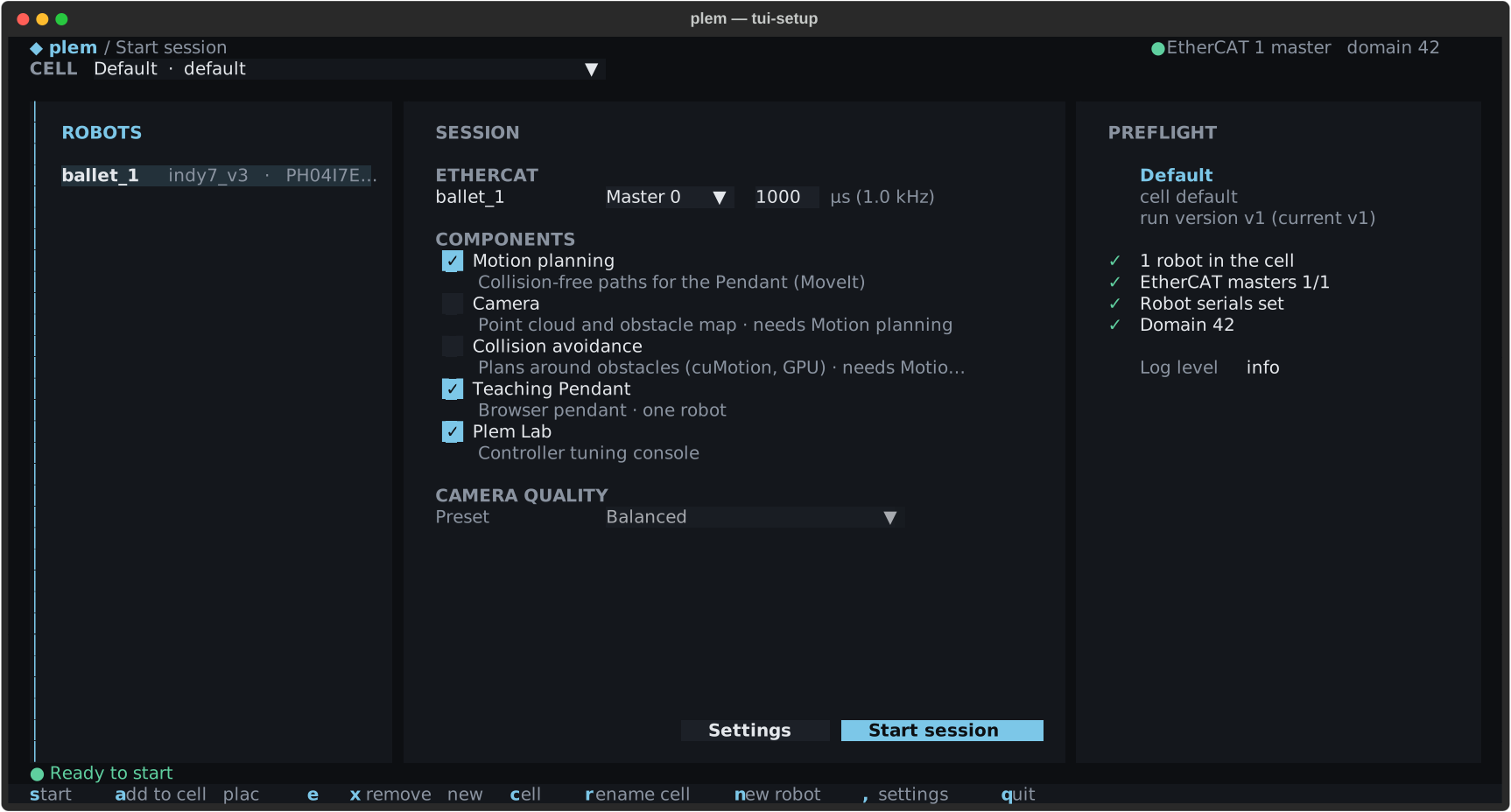
- Start session: pick the cell and the components to launch.
qhere quits the program. - Robot Control: operate the robots you launched.
| Page | What it covers |
|---|---|
| Start session | Cell and robots, EtherCAT masters, control period, components, why Start is blocked |
| Settings | ROS domain and log level, robot edit (gripper, F/T sensor, camera calibration) |
| Robot Control | Reading the screen, brake and Freedrive, joint moves and poses, the log, every key |
| Stops and recovery | Protective Stop alerts, R recovery, stopping and quitting, crashes |
| Command line | Terminal commands such as kill, remote support, robot profiles and uninstall |