Teaching Pendant
The Teaching Pendant is the browser screen where you move the robot, save poses, and build and run programs.
It opens only while the robot stack is running, so launch it from plem TUI first. The address is http://; the TUI's Robot Control screen also shows it under WEB.
If the address opens a PLEM is locked page instead (browser tab title PLEM — License required), the device's license could not be confirmed. Follow PLEM is locked page.
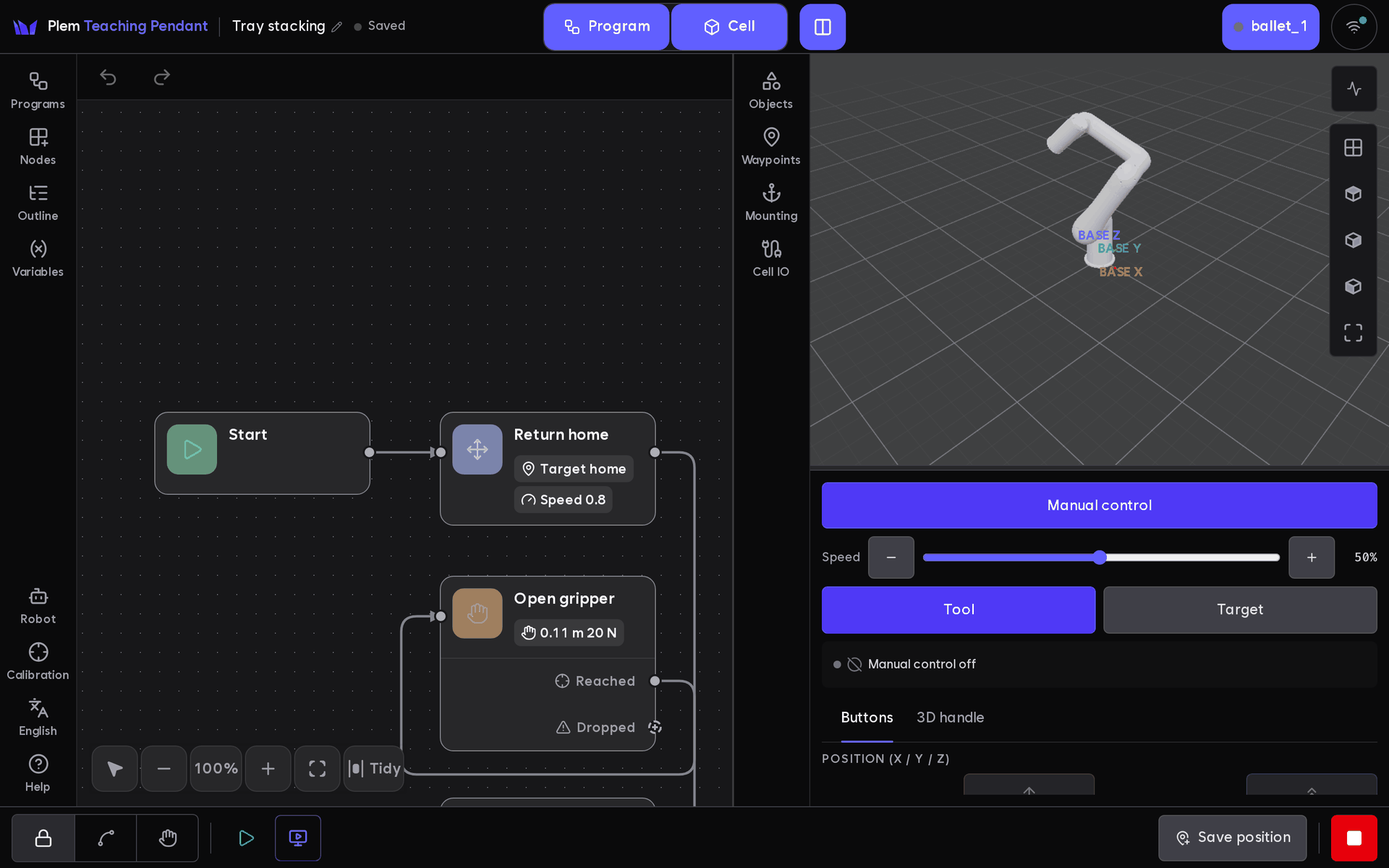
The basic flow:
- Move the robot into a working pose and save it as a Waypoint.
- Build a program that chains Waypoint moves, the gripper and waits.
- Run it. While it runs, the canvas shows the progress.
The screen comes in English and Korean. The language button near the bottom of the left rail shows the current language (English or 한국어); tap it to switch. The choice is kept on that tablet. On first use the Pendant follows the browser's language when it is one of the two.
The buttons are sized for touch screens and gloved hands.