Run
Programs run only from ▶ in the robot control bar at the bottom.
| Open document | What ▶ does |
|---|---|
| Program | Validates, makes a Job and starts it in one press. The Job is a copy of the program at that moment and stays in the run list, so you can start it again. Later edits to the program do not reach it |
| Job | Starts that Job. After it ends, the button becomes Run again |
When ▶ is locked, the reason shows above the button.
| Button | Locked while |
|---|---|
| ▶ Run on a program | The program is not saved yet · the robot connection is being checked · Protective Stop (recover with ↻ first) · a calibration drive runs (until it ends or you stop it) · the program's robot is BRAKED and the program has a move node |
| ▶ Run · Run again on a Job | Protective Stop · a calibration drive runs · the Job's robot is BRAKED and the Job has a move node (not on a simulation Job) |
| ▶ Resume on a paused Job | Protective Stop · robot safety state unknown · a calibration drive runs |
| ▶ Continue run while awaiting recovery | The same three · the robot is away from the start position (also while the resume reference has not arrived) |
"Robot safety state unknown" lasts until the robot connection is up and a safety state has arrived.
The BRAKED lock counts only move nodes that can be reached from the start. Simulate stays available, and a program with no such node, a gripper-only program for example, still runs. Switch the robot to TRAJ to lift the lock.
The robot moves. Check these first:
| Item | Check |
|---|---|
| Work area | Everything the arm, gripper and attachments can reach is clear of people, tools, part boxes and loose cables |
| E-Stop | You know where it is, you can reach it, and nothing rests on it |
| Clothing | No loose clothes, long hair, necklaces, watches or rings. Wear safety shoes and safety glasses |
| People | Only the operator is inside. The fence, light curtain or floor tape keeps others out |
If you did not write the program, read its graph node by node first. Run it the first time at low speed. The robot mode must be TRAJ.
Start a run
▶ validates, makes the Job and starts it. The canvas shows the new Job read-only, and a collapsed 3D view opens.
If validation fails, nothing runs and the Problems: N list opens at the top right of the canvas. Reasons the server refused also appear in it, per node. Click a row to open that node's details.
| Message | Meaning |
|---|---|
Cannot run — no robot assigned (metadata. | The program has no robot. Programs made while connected to the server get one automatically |
Robot <name> is BRAKED — switch it to TRAJ to run this program | That robot is in BRAKED, so ▶ is locked. Switch it to TRAJ |
| The Problems: N list opens (start node, links, loop structure, values) | Click the row and fix the value in that node's details |
What blocks a run and what does not:
- An outcome dot with no link does not block the run. If that outcome happens, the program ends there.
- A node that cannot be reached from the start is only a warning and does not block ▶. Check on the canvas that the nodes you mean to run are reachable.
- A move node that points at a Waypoint this robot does not have is refused. Pick another Waypoint in the node. Move nodes still run after their Waypoint is renamed.
- A node that takes its Waypoint name from a variable cannot be checked when you press ▶, so it can fail during the run.
To fix a program, open it again from the list on the left. This is locked while a Job runs or awaits recovery. Your fixes reach a new Job only when you press ▶ on the program again.
▶ waits until pending edits are saved. If saving fails, nothing runs and the bottom bar shows why. Press ▶ again to retry the save.
Closing or reloading the window also sends the latest edits, but they may arrive before or after a save that is already in progress. When you finish editing, check that the save state reads Saved before you close.
Simulation
Simulate, the outlined button next to ▶, plans the program's moves without moving the robot. Like ▶ it saves, validates, makes a Job and starts it. The Job gets a Simulation mark and the line "The robot does not move · Check the real run again at low speed". The ⓘ at the end of the line lists what a simulation does not guarantee. Each move node turns green (planned) or red (planning failed).
- The first move is planned from the robot's current pose, each later move from the previous move's target.
- A move the planner refuses stays failed, and the run carries on as if it had reached its target. The reason is under Errors in the bottom bar.
- A move refused for a path collision names the object and the point it hit, and offers View in 3D and Add via point, as in a real run. The collision position is relative to the simulated start pose (the previous move's target). Add via point opens the simulated program and inserts a via move before that node. Press Simulate again to check the fix.
- The playback bar over the cell 3D view plays the planned moves on a ghost in planned time: Play path, Pause, From the start. The robot model keeps showing the real pose. A refused move has no path, so playback skips it and the next move starts from its target.
- If the planner does not answer, the simulation ends in an error.
- Other nodes (variables, waits, grippers, conditions, loops, parallel) behave as listed per node in the node reference.
- You cannot simulate while another Job runs. The reason shows next to the button.
- A Job that is not running (not run, completed, stopped, failed) also has Simulate next to ▶. It simulates the Job as it was made, and Add via point edits the source program if it still exists. If the Job's checks do not pass, the Errors list shows "Cannot run — the Job checks did not pass".
- A finished simulation offers Simulate again instead of Run again. To fix the program, press Edit (pencil) on the band above the canvas. It opens the program as saved now, which may differ from the Job.
At run time the robot pose, Waypoints, variables and cell scene can differ, and path collisions are checked only at sample points along the path. Check on the real robot again at low speed.
Run controls
The bottom bar shows the Job's state and the buttons that state allows.
The labels are the ones the bar shows. The run engine and the stored Job status use their own words for the same states.
- ⏸ Pause stops after the current node ends, not at once. Meanwhile the bar shows "Stops when the current node ends", for as long as a long move takes.
- ⏹ Stop run asks to cancel the move in progress and ends the Job. If the controller accepts, the robot holds where it is, with no deceleration ramp. The stopping distance has not been measured. It does not brake; for that, use Stop at the right end of the bottom bar.
- A stopped robot sits where it stopped, short of its target. Before you run again, look at the robot's position and anything in the gripper.
- The state shown changes only after the server confirms it. A brief Starting…, Pausing… or Stopping… is normal.
If the server does not acknowledge ⏸, ⏹ or ▶ within a set time, the bar shows Pause not confirmed (or Resume, Stop run) and a button that sends the same command again.
⏹ pressed right after a resume also waits for the stop answer. The start of the earlier resume, or an awaiting-recovery state, does not count as a confirmed stop.
If a stop or pause is not confirmed and the robot keeps moving, press the Emergency Stop.
While a Job runs
Right after ▶, or when you click a running Job in the list, the canvas shows that Job and draws its progress. When the running node changes, the canvas moves once so that node is visible. If you pan by hand, it stays put until the next node.
| Node display | Meaning |
|---|---|
| Indigo border and a spinning icon | Running |
| Green ✓ at the top right | Done |
| Red | Failed |
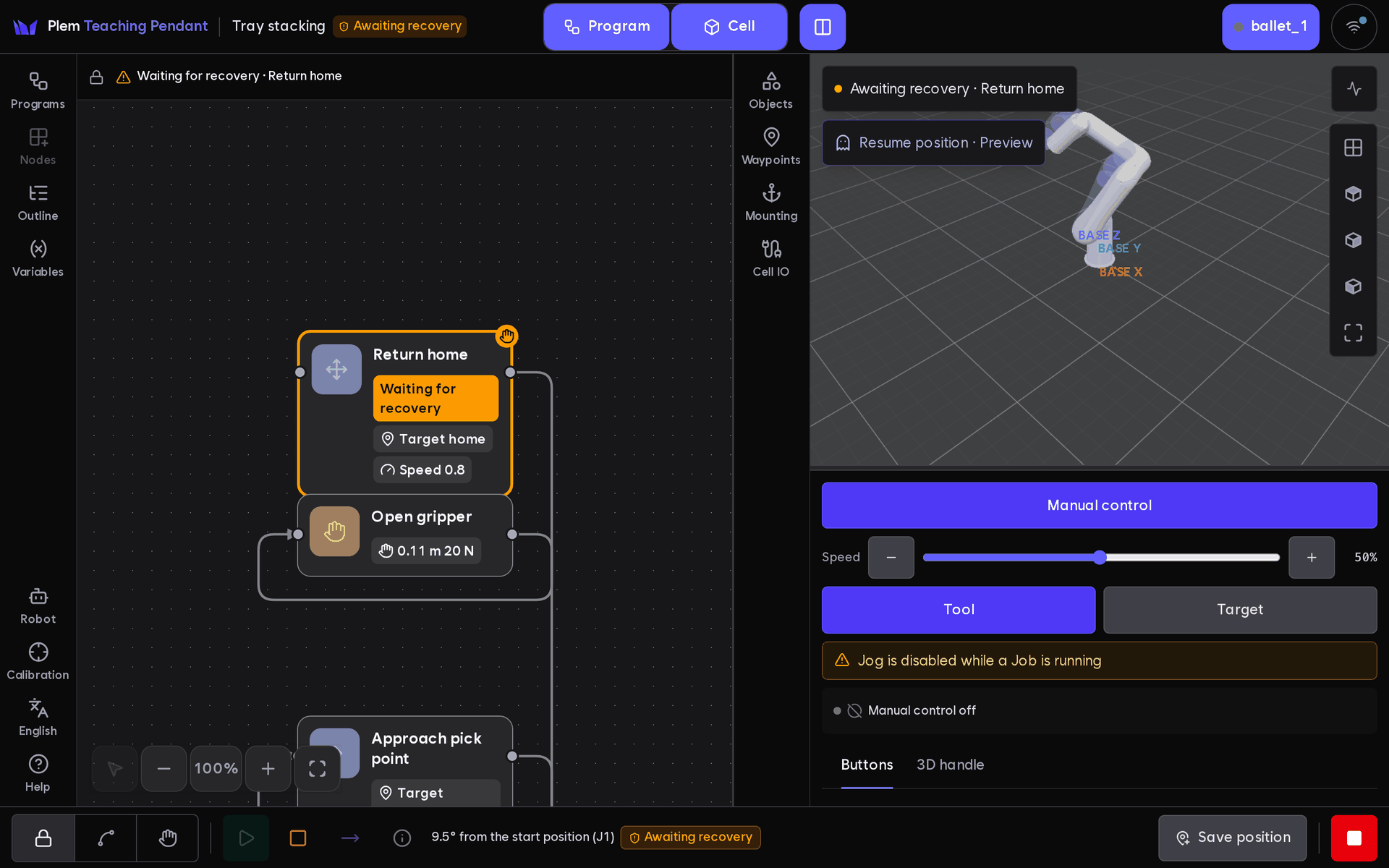
| Amber border | Paused; ⏸ marks the node to continue from |
| Thick amber border and a shield | The node where the Protective Stop happened (a hand and Waiting for recovery while awaiting recovery) |
A loop head shows progress: a count loop shows "2/5 ●●○○○" (only numbers above 10 rounds), a forever or condition loop shows "Round 2". When a new round starts, the Next round slot lights briefly and the nodes in that loop go back to waiting.
A screen opened later (reload, new tab, another device) does not get past node colors back. It colors nodes from the next event on.
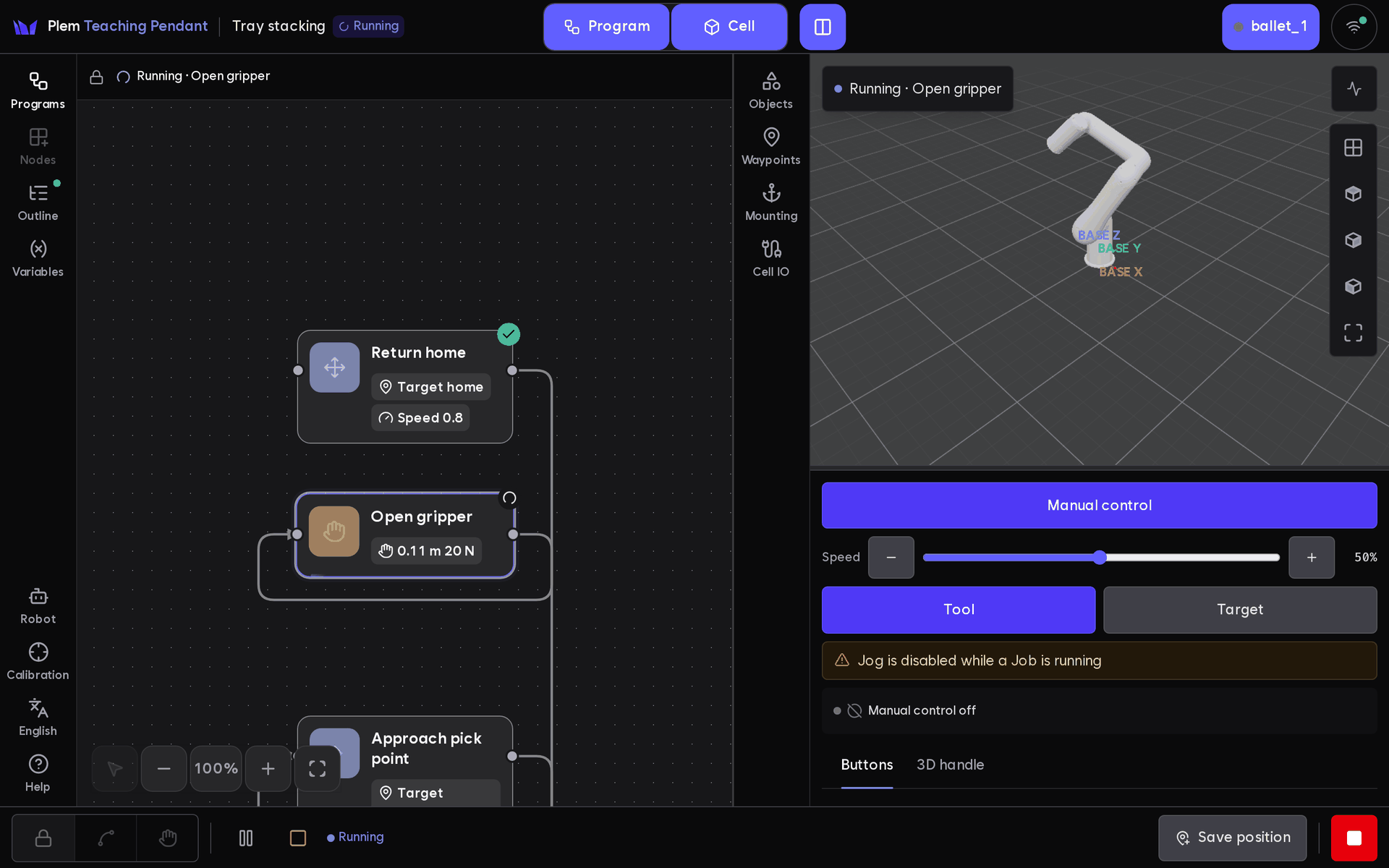
The Job band above the canvas shows the lock (read-only) and the state in one line:
| State | Band text | Clicking it |
|---|---|---|
| Running | "Running · node" ("Running · 2 nodes" when there are several) | Goes to the node |
| Paused | "Paused · Next: node" | Goes to the node |
| Awaiting recovery (also during the Protective Stop) | "Waiting for recovery · node" | Goes to the node |
| Complete | "Complete · node ended at “Exit” · 3 min 12 s" (time only when complete) | Goes to the node |
| Simulation complete | "Simulation complete" | Opens the error list if a move failed |
| Error | "Error" ("Error (2)" for two or more nodes) | Opens the error list |
| Not started | "Not started": the server refused the start or resume | Opens the error list |
| Stopped | "Stopped" | Nothing |
After a reload the band shows only the Job state and points at no node.
When the run ends, the bottom bar shows Completed, Stopped, Failed or Error. The screen and node colors stay as they ended, but only on a screen that watched the end. A Job opened later from the run list shows every node as waiting.
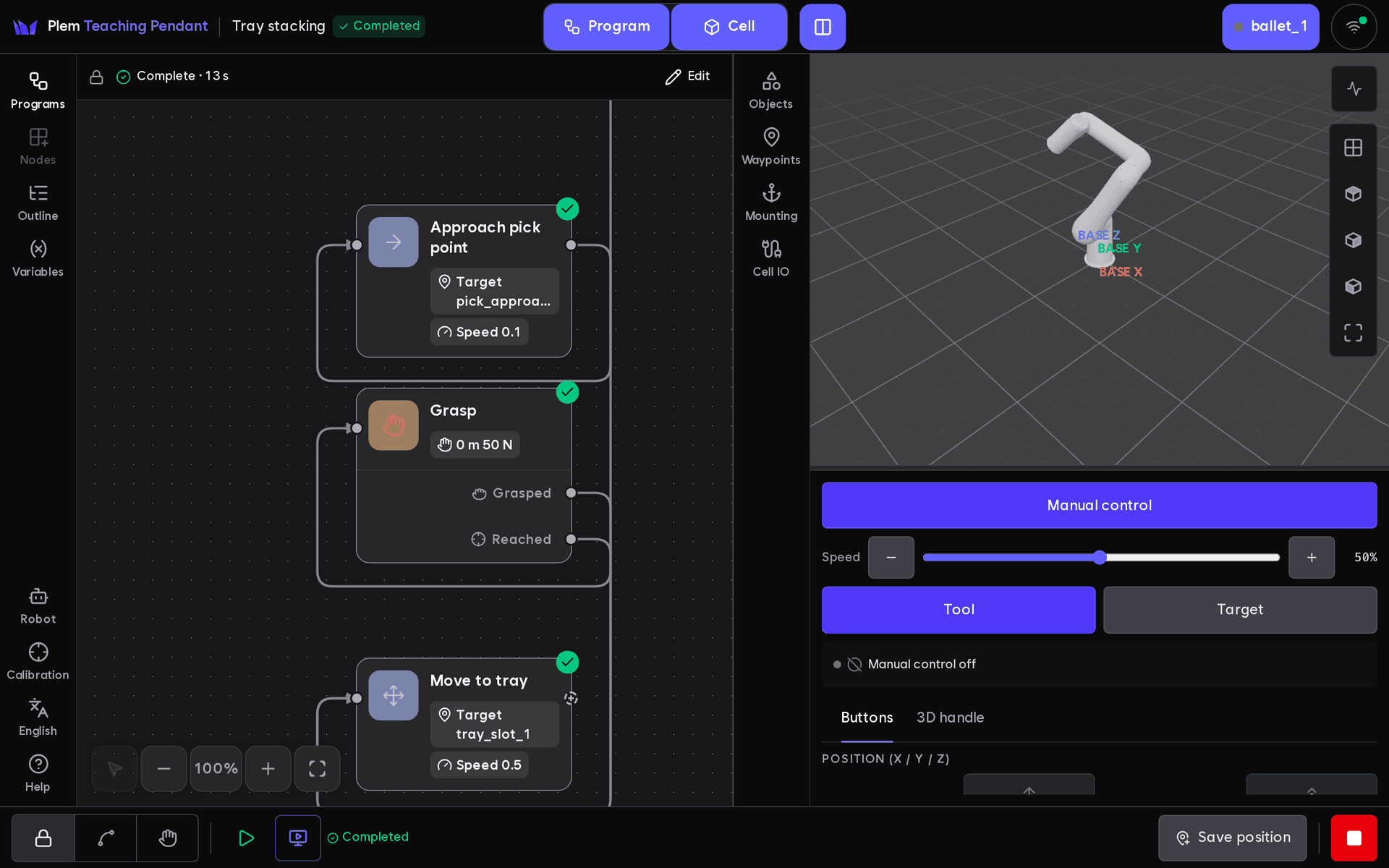
On a Job, one click on a node also opens the node details, marked Job · Read-only under the title.
- Settings, value links (inputs and the variable saved on success), loop conditions and branch conditions are the Job's own values and cannot be changed. To change them, open the program from the list on the left.
- Field names, descriptions and the output list under value links follow the skills installed now, not a record from when the Job was made.
When a node fails, the Errors: N count in the bottom bar goes up. Click it to list the failed nodes in time order, and click an item to go to that node. Errors the Job raises while running appear here too.
When the connection that carries the run state (the run channel under Connections at the top) drops, the canvas and bottom bar turn grey and dashed and show when the drop happened. From then on the node colors and state are the last ones received, not the robot's current state.
The server does not resend what changed in between. So after Run channel reconnected the grey stays until the next run starts or the Job ends. Events that arrive meanwhile update only their node or variable. A Job that ended is settled by asking the server.
The 3D view does the same for the robot connection: it keeps the last pose in grey with "Robot disconnected · showing the last pose".
Run list
The Programs list on the left holds programs and their Jobs together.
- When the Pendant first connects to the server, it opens the active Job. With no active Job and exactly one Job awaiting recovery, it opens that one. With several, pick one from the list.
- The Job running now is pinned in the Running group at the top.
- Under each program row, its 3 latest finished Jobs show. Show more adds 20 at a time. The arrow at the right of the row folds and unfolds them.
- Jobs whose program was deleted are in the No source group at the bottom. If the program list could not be read, they wait in the Jobs group instead.
- Programs are ordered by when they last made a Job (a running one first, then programs that never made a Job, by edit time). Running a Job again does not change the order.
- An open Job stays in the list even when it is behind Show more or inside a folded program.
- Click a row to open the Job. Start and stop it from the bottom bar.
- The row's ⋯ menu has Download JSON, Edit label and Delete. Delete asks once more inside the menu.
A run the server is executing may have no saved Job in the list, for example one another client started. It shows in the Running group as a Server run row. You can open it and pause or stop it from the bottom bar; it has no ⋯ menu.
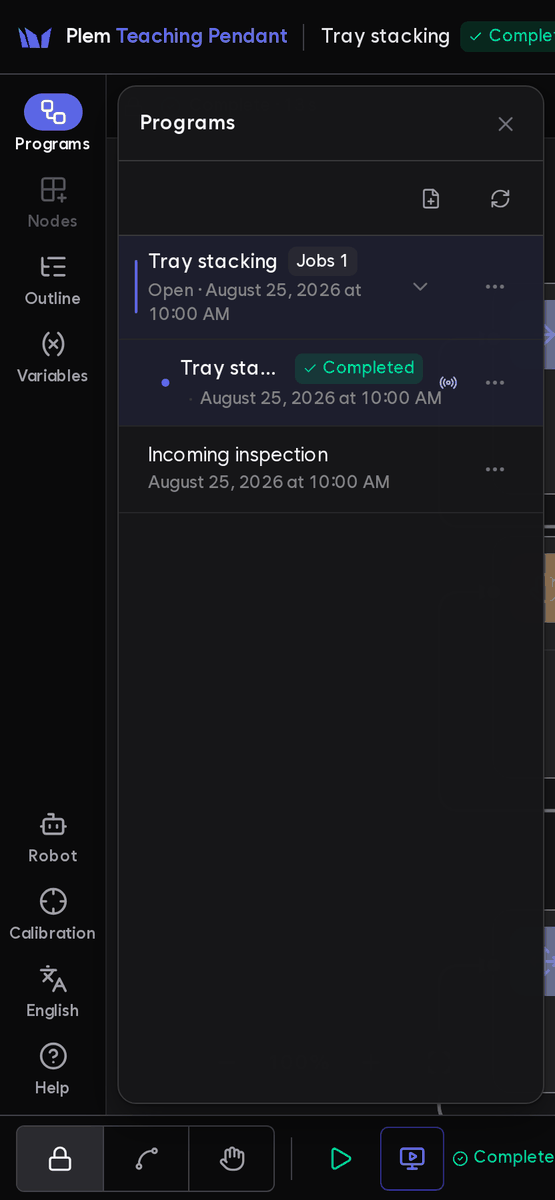
A Job whose program was deleted shows Program deleted and No source next to its name. You can still open it and run it again with ▶; it uses the copy saved when the Job was made.
After a reconnect, a reload or a login from another device, the bottom bar reads the server's state again and shows the same buttons: Resume · Stop run for a paused Job, Continue run · Stop run for a Job awaiting recovery.
Protective Stop and recovery
On a Protective Stop the bottom bar shows an amber P-STOP chip and ↻ (recover) next to the robot mode, and its top line turns amber. A running Job stops. Stop work as soon as you see P-STOP.
The chip also shows when no Job is running. Click it for the explanation. It mentions the stopped Job and the saved checkpoint only when a Job was actually stopped.
During the Protective Stop, locked controls are dimmed with the reason above them.
| Locked | Still available |
|---|---|
| The TRAJ (curve) mode · ▶ (run, resume) · Jog · moving to a Waypoint · calibration drive | ⏸ · ⏹ Stop run · Save position · Stop at the right end of the bar |
The robot mode buttons have two stages:
- While the robot reports the Protective Stop, only FREE (hand) works.
- After the robot report clears but before you recover with ↻, BRAKED (lock) and FREE work. TRAJ stays locked.
Clear the Protective Stop
- Find and remove the physical cause. The Protective Stop will not clear while it remains.
- Look for warning lights and an E-Stop whose head has popped up.
- Take your hands off and look from about 1 m: where the arm, gripper and attachments touched, the gaps to conveyors, benches and walls, and any dropped parts. Before you step into the area, make sure nobody else has a hand on the Pendant or a keyboard.
- If you do not know the cause, do not push or pull the arm by hand: a motor or drive fault is possible. To move the robot out of the way, recover first, then Jog it.
- If a joint is past its limit, switch to FREE in the same bar (Freedrive) and move it back by hand.
- Reset a pressed E-Stop by turning it clockwise. The Protective Stop stays latched after that; P-STOP still showing is normal.
- Press ↻ and choose Recover in the P-STOP recovery dialog. Check again that nobody is in the area.
- Check that P-STOP is gone. If the Protective Stop remains, a notice above ↻ gives the reason and what to do, and FREE is highlighted. The notice stays until you close it or recover again.
- The robot is still BRAKED. The Pendant does not switch it to TRAJ for you. Before going on, check that P-STOP is gone, the robot mode reads what you chose (TRAJ or FREE), and no new errors appear. Move the robot to a safe pose with Jog or Freedrive before you continue. Running again from the pose where it hit can repeat the accident.
↻ sends a recovery request. The Protective Stop has not cleared until P-STOP disappears from the bottom bar. A stopped Job does not mean the robot's Protective Stop has cleared.
Awaiting recovery
On a Protective Stop the bottom bar turns to Awaiting recovery, and you choose with ▶ or ⏹. No dialog opens, so FREE and the rest of the screen stay usable. The Job never restarts on its own.
| Button | What it does |
|---|---|
| ▶ Continue run | Continues from the node where it stopped. Locked while P-STOP shows (recover with ↻ first) and while the robot is away from the start position (below) |
| ⏹ Stop run | Discards the point to continue from and ends the Job. ▶ then runs from the beginning. It does not move the robot, so it works during the Protective Stop too |
An old checkpoint that recorded no pose at the stop has no reference, so Continue run is refused ("This checkpoint has no resume reference pose"). Stop the run with ⏹ and run from the beginning.
Align to the start position
To continue, the robot must be at the resume reference pose. If you pushed it in Freedrive or moved it with Jog after the Protective Stop, continuing would plan a new path to the next target from the wrong place.
- Check the difference. Next to ⏹ the bar shows the joint that is furthest off and by how much, for example "9.5° from the start position (J1)". The 3D view overlays the reference pose as a translucent robot. If the text is cut off, press the ⓘ next to it for the full text, whatever the screen width.
- Press and hold Move to start position (→). While you hold it, the robot moves slowly along a planned path to the reference pose. It works like joint target in Jog: releasing asks to cancel, and holding on goes all the way. The robot must be in TRAJ with manual control off.
- Check that ▶ unlocks. It unlocks when the difference is inside the tolerance. Release the button or wait for the robot to arrive, then press ▶.
- If the node to resume is a move node and its Waypoint (or the variable's value) can be found, the Waypoint's current value.
- Otherwise the pose observed when the checkpoint was last saved: the pose before the next node if it stopped between nodes, or the pose recorded during abort handling if it stopped inside a node.
When the server handles Continue run, it checks the largest deviation between the last joint angles it received and the reference it looks up then. Outside the tolerance it refuses.
The screen runs the same calculation on a preview reference and joint values it receives separately, so the request can disagree with what the screen shows.
If, when the resume starts, the move node's Waypoint differs from the one checked (re-taught, or a variable changed in between), the run stops before the first move and asks you to check again.
The check covers only the deviation of the start pose. The move back uses the same planner as every other move, so this check does not make the path any safer. Look around the robot before it moves. The tolerance (default 5°) has not been confirmed on real hardware yet.
Where the run continues
- If it stopped between nodes, the run continues according to the next node's resume setting.
- If the server dies after a node ends but before the next checkpoint is saved, the last node may run again.
- If it stopped inside a loop or a sub-program, that node runs again from its start. Checkpoints record only top-level nodes.
All stop kinds and recovery rules are in Stops and safety. The screen has no emergency stop button: software cannot stand in for the physical one.