Node reference
This page lists the nodes you can add from the Nodes library and the values you set on them. Node definitions come from the server's catalog, so an update can add more. The last column says what the node does in a simulation, where the robot does not move.
Start and structure
| Node | What it does | Settings | In a simulation |
|---|---|---|---|
| Start | The program's start point. Run starts from the node linked to its Start outlet | None. One per program, cannot be deleted | Same as a run |
| Loop | Repeats the nodes inside it. Loop type Count, Always or Condition. A Condition loop runs while the expression is true and checks it before each round | Loop type, and the count or the condition | Always and Condition loops run once. Count loops run their count |
| Condition | Splits on one expression into Yes and No (if/else), or splits one value into several cases (switch) | if/else or switch, then the expression, or the value to compare and its cases (below) | Decided with the current variable values. The branch taken shows as a green line and node color |
| Parallel | Runs several lanes at the same time. Nodes that move the robot go in the one Motion lane; the rest (gripper, wait, variables) go in Aux lanes | Each lane has its own start slot, and a node in a lane links only to nodes in the same lane. Join: When all finish, or When any finishes (the other lanes are cancelled) | Same as a run. With When any finishes, which lane ends first can differ from a run |
In the library, Start is under Trigger, and Loop, Condition and Parallel are under Logic.
Motion
| Node | What it does | You set | Outcome | In a simulation |
|---|---|---|---|---|
| Move Joint | Turns the joints to reach a Waypoint. The path is curved, but this move succeeds most often | Target Waypoint · Speed 0.01–1.0 (default 0.3) | Moved | Plans only. A refused plan is recorded as failed, and the run goes on as if the target was reached |
| Move Linear | Moves the tool tip in a straight line to a Waypoint. Use it for short, precise approaches such as lowering to pick | Target Waypoint · Speed 0.01–1.0 (default 0.2) | Linear move done | Same as Move Joint |
Move Linear planning can fail near a singularity. If it does, use Move Joint for that segment.
Gripper
| Node | What it does | You set | Outcome | In a simulation |
|---|---|---|---|---|
| Move Gripper | Moves the gripper to a width. Opening and gripping both use this node | Width (0 closes fully, default 0) · Force (0 = Max force, default 40). The range follows the mounted gripper, for example RG6 0–160 mm and 25–120 N. A value out of range, or no gripper, refuses the run | Grasped (holding a part) · Reached (closed all the way with no part, or opened) · Dropped (the gripper reported losing the part during the node) | Does not move. Counts as Reached |
Programs made with the old OnRobot RG6 gripper node turn into Move Gripper when you open or run them. Width, force and links stay; an unlinked Dropped is added.
How to use the outcomes:
- Link the steps that follow a grip to
Grasped. - Treat
Reachedas closing on nothing: go back to pick again, or end the program. - Only one outcome happens. If the gripper stops on a part, the
Reachedbranch does not run. - An outcome slot left empty ends that path normally, not as an error. In a loop the next round can go on. An unlinked
Graspedtherefore skips everything after the grip. Droppedcomes only from grippers that report a lost part. RG6 does not, and a simulation never does.- If a part is dropped while another node runs (a move, for example), the Job does not stop. An alert like "The gripper dropped its part · during "P2 move" · 3.2 s after the grip · 14:03:21" (the time the alert arrived) shows, and the Cell IO device signal
device.turns on. If the process must stop, check that signal with a Condition node.<robot id>. gripper. dropped
Logic
| Node | What it does | You set | Outcome | In a simulation |
|---|---|---|---|---|
| Wait | Waits for a set time, for example for glue to cure, a conveyor to move or a sensor to settle | Wait time 0–60000 ms (default 1000) | Time elapsed | Does not wait |
| Set Variable | Puts a value into one of the robot's variables. The value stays after the run ends and after a power cycle | Variable · New value | Variable set | Changes the value only inside this simulation. Nothing is saved |
Cell IO
These nodes wait for and write signals registered in Cell IO, by name. Pick the signal from the list in the node details.
| Node | What it does | You set | Outcome | In a simulation |
|---|---|---|---|---|
| Wait for Signal | Waits until a signal meets a condition, for example a PLC's start bit or recipe number | Signal (input or device signal) · Condition · Max wait (s, default 30, or No limit) | Met · Timeout | Does not wait. Goes to Met and passes on the value in the condition |
| Write Signal | Writes a value to an output signal, for example a done bit or a part count for the PLC | Signal (output signal) · Value to write | Done | Only checks that the value fits the signal. Nothing is written to the PLC |
| Wait for Signal | Write Signal | |
|---|---|---|
| Values | A bool signal: On or Off. A number signal: =, ≠, >, ≥, < or ≤ and a value (a whole number for an integer signal) | A bool signal writes On or Off to value_, a number signal writes to value_. An earlier node's output can be linked in |
| Goes on when | The condition holds. It checks on entry and on every change, so a condition already met passes at once. An unknown value meets no condition. The value at that moment is passed on in value_ or value_ | Client connection: the PLC confirms the write. Server connection: the value is in plem's table, and the PLC reads it on its own cycle |
| Ends with an error when | The time runs out and Timeout is not linked | The value is out of the type's range or a fraction for an integer signal, the connection is off or lost, there is no answer, the PLC returns a Modbus exception, or a server connection could not open its port |
| Refused at start when | A later node reads the output this signal type does not fill | A linked input is the kind this signal type does not write |
| Cannot use | Output signals | Input and device signals |
| Pause and stop | Stops at once. After resume the node runs again from the start, and so does the max wait | The written value stays (forced output) |
Conditions and branches
A Condition node in if/else form checks one expression: true goes to Yes, false to No. Cards and the picker show true and false as Yes and No; an expression you typed keeps true and false.
- Build it with the picker: in the node details, pick an earlier output or a variable, a comparison (
==!=<><=>=) and a value. The picker writes the expression. The stored expression shows at the top as "Current condition:". If the picker cannot express it (a compound expression, or an earlier node not yet linked), the picker opens empty and the original stays in Advanced. - Type it: under "Advanced: type an expression".
- On the card: the condition shows in short form, such as
count > 5. A switch shows the value it compares. A compound expression from Advanced shows only its type on the card; the full text is in the details.
A switch splits one value into several branches.
- Pick the Value to compare: one variable or earlier output, not an expression. If it is not in the list, choose Type a reference… at the bottom and enter a reference such as
variables.. If its type cannot be known, the field says so.count - Add case rows, each with a comparison (
==!=<><=>=), a value and a name.
At run time it takes the outlet of the first case that matches, from the top. If none match, it goes to Otherwise (default).
- A case value has the type of the value it compares with.
- A value of another type (text for a number, say), or a size comparison such as
<on a value that is not a number, leaves the node unset and blocks the run. - Numbers are one type, so
7and7.0are equal.
The old form, which used value names as outlet keys, turns into cases when you open it. Outlets that did not match the value's type stay as unset cases. Delete them or fix their values.
Variables
Variables belong to one robot (cell), not to a program. Programs only refer to that list.
- In the Variables panel on the left you add a variable with a name, a type (Number, Text or Yes/No), a default and a description, and change or delete its current value.
- Added variables show in the "Variable" group of the condition picker and in the Set Variable node's list.
How nodes that use variables behave:
- A node that uses a variable that is not registered, or a Set Variable node whose value has the wrong type (text into a number, for example), is unset and blocks the run.
- A node that sets a variable writes the value to the robot first, then moves on. If the type is wrong, no value changes and the node ends with an error. If the write fails, the node also ends with an error.
You cannot change a variable's value or type, or delete it, because the Job runs on its own copy. The default and the description still save while running if the type stays the same. A type change shows a warning in the edit field before it is refused.
Variable declarations in an old file show under the panel as "Old definitions in the file — added on save". They are added to the list when you save that program. If the same name already exists with another type, the save is refused.
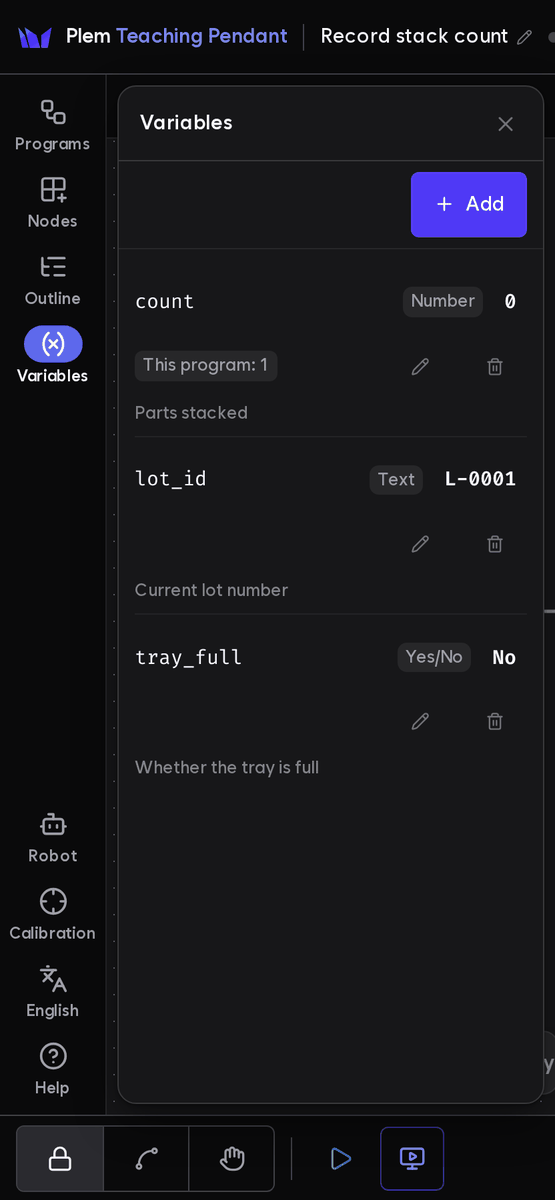
| In the panel | What it does |
|---|---|
| Add | Enter a name, type, default and description, then press Add (see below) |
| Edit (pencil) | Changes the type, default and description. The name stays |
| Change value | Tap the value in a row to change the current value. Locked while running; the running Job's value shows with "Running" |
| "This document: N" badge | How many nodes in the open program (or Job) use this variable |
| Delete (trash) | Confirms once more in the row, showing how many places in the open document use it (see below) |
- Add: a name starts with a letter or
_and uses only letters, digits and_.trueandfalseare not allowed. A name already in use is not added; use Edit on its row. - Delete: if another saved program uses the variable, the server refuses and lists "program name · Nodes: N".