Settings
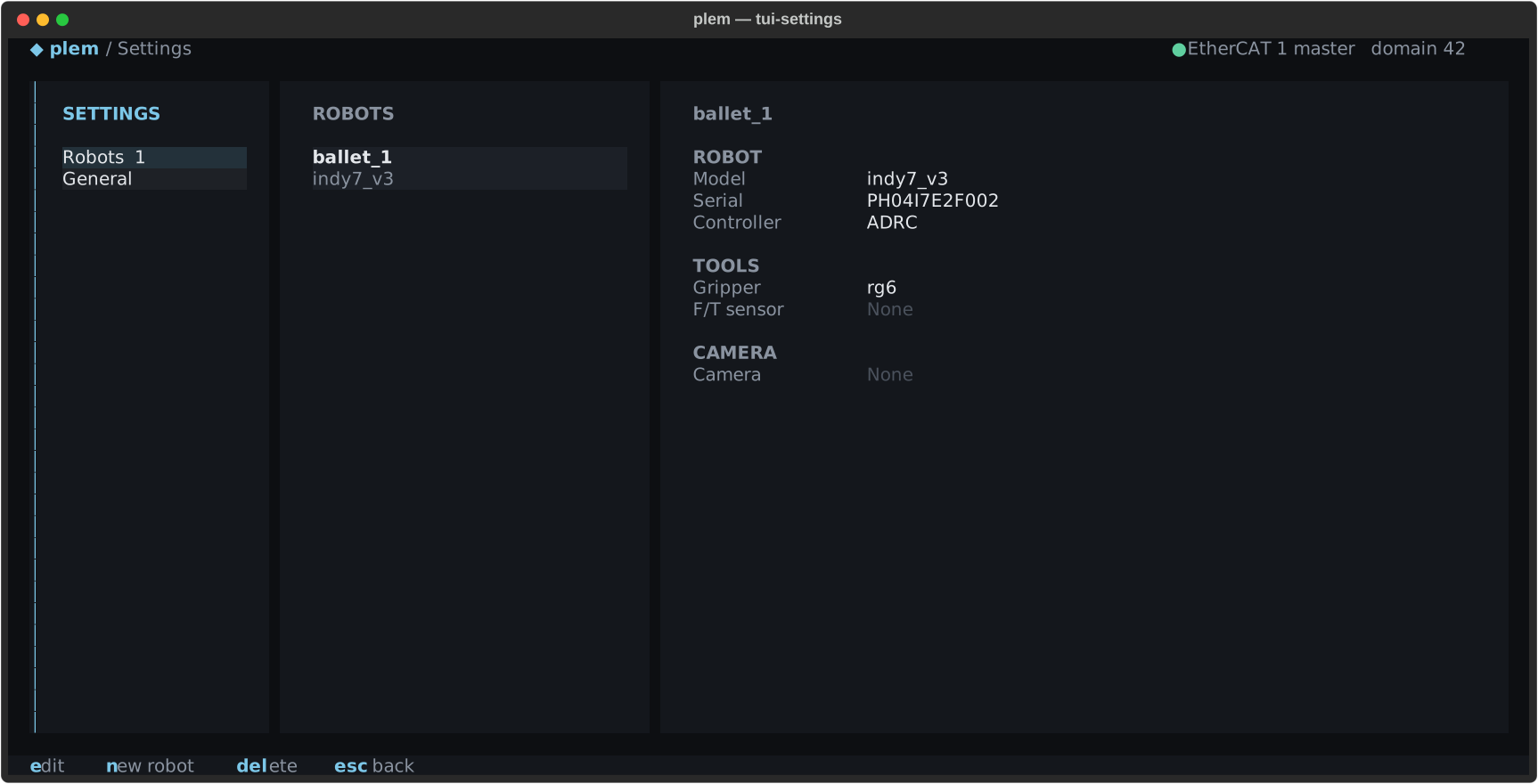
Press , on Start session or Robot Control to open the settings. Pick Robots or General in SETTINGS on the left.
- Robots: the robot list and the selected robot's setup: model, serial, controller, gripper, F/T sensor, camera and its calibration.
- General: the settings of this device.
When the window is narrower than 100 columns, the SETTINGS pane folds away and g switches between Robots and General. esc goes back.
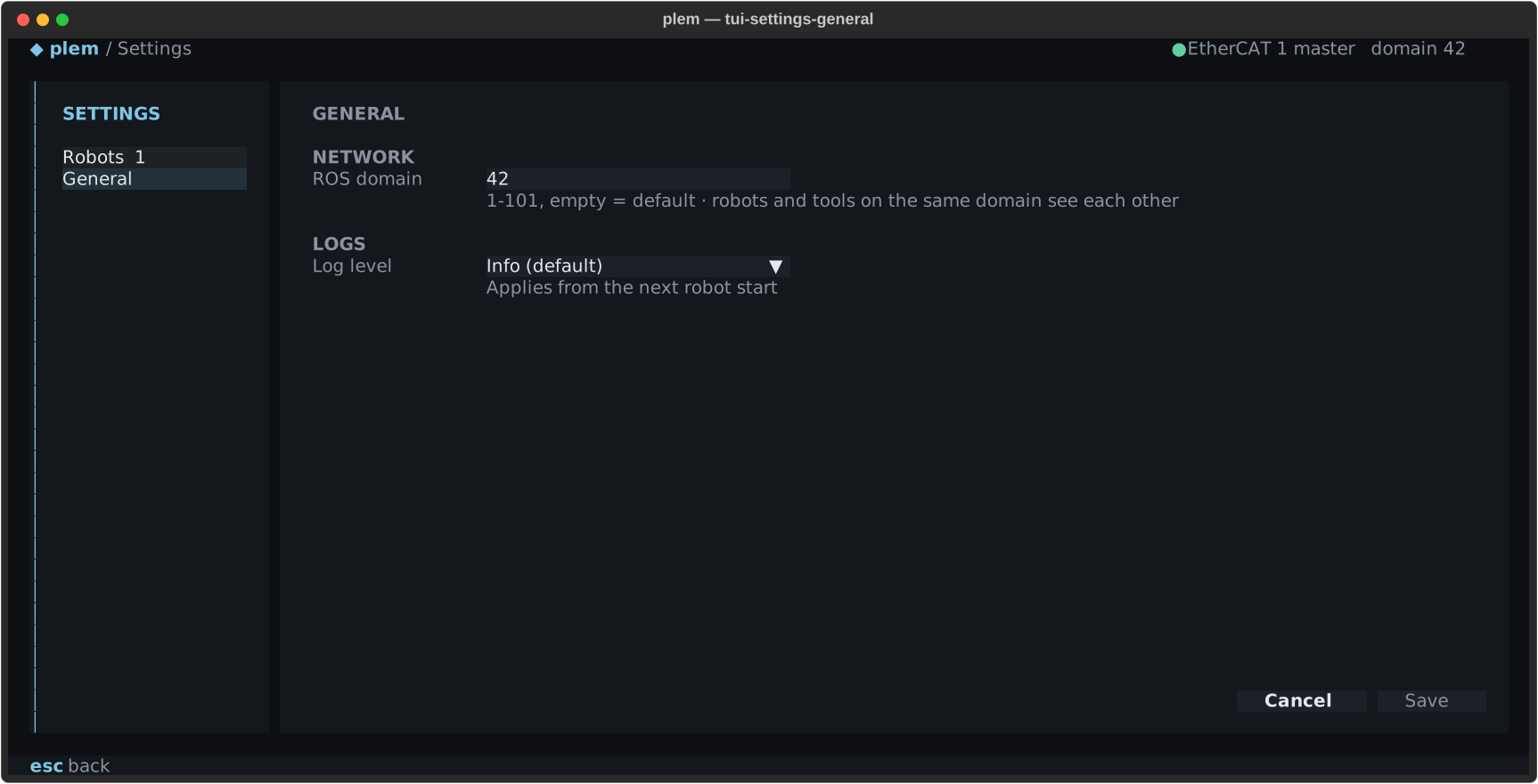
General
| Item | What it sets |
|---|---|
| ROS domain | 1–101. Blank means unset (0) |
| Log level | How detailed the stack log is: Error only · Warning+ · Info (default) · Debug (verbose). Applies from the next stack launch |
- A change shows
● Unsaved changeson the state line. - Save (
ctrl+s) showsSaved — restart plem to apply. - Cancel or
escreverts the changes. - A domain out of range is not saved, and the reason appears in red under the field.
Launching the stack again does not apply a new domain. Quit plem completely and run it again. Terminals you open after that get the new value too.
Robots
Keys in Robots:
e: opens the selected robot's edit form in the right pane. Enter on the list does the same.n: registers a new robot.delete: asks for confirmation, then deletes that robot's profile and serial record.yconfirms,ncancels, and Enter does not confirm.
deleteA deleted profile and serial record cannot be restored, and the robot cannot be registered again from this screen. Contact support if you need it.
Robot edit
Select a robot in Robots and press e. Its profile opens as EDIT ROBOT in the right pane, and the list and SETTINGS stay locked until you close it. Use it when you change the mounted gripper or F/T sensor, or pick a camera calibration record.
- A change shows
● Unsaved changeson the state line. - Save (
ctrl+s) applies the values from the next stack launch. - Cancel (
esc) discards the changes and closes the form.
The same items can be changed in the Teaching Pendant's robot settings and with plem profile.
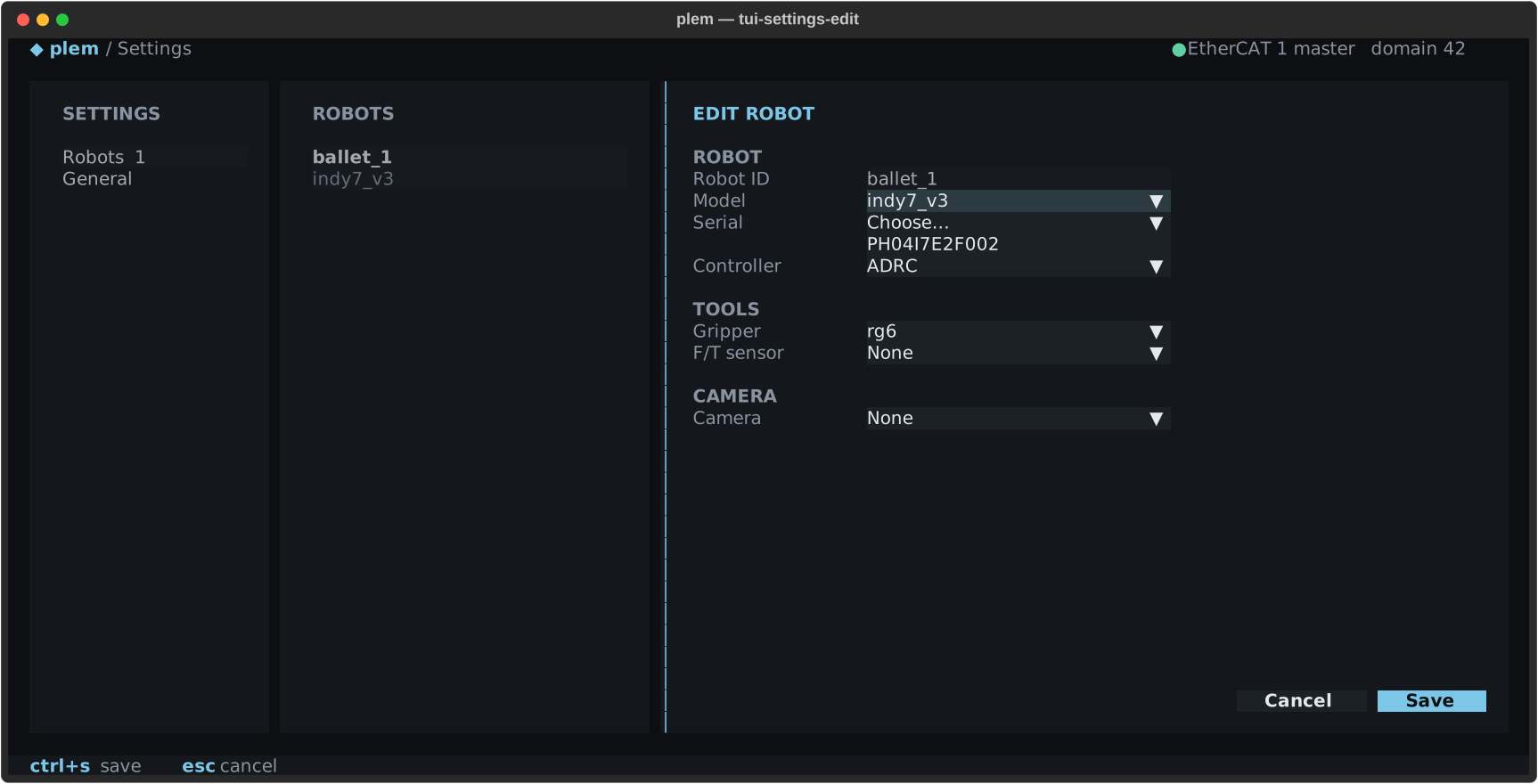
| Field | What it is |
|---|---|
| Robot ID | Cannot be changed here |
| Serial | Pick the serial on the robot's label from the list. Joint offsets come from that serial's profile, so it must match the label exactly. If it is not listed, contact support |
| Model | One of the robot models installed on this device. A blank model is not saved. If this robot's model is not listed, contact support |
| Controller | ADRC · PID · Plugin (advanced). Plugin saves only with a built .so picked or an absolute path entered; see Custom torque controller |
| Gripper | The mounted gripper model. Blank means no gripper. The interface follows the model |
| F/T sensor | The mounted F/T sensor model. Blank means no sensor. See F/T sensor |
| Camera | The camera model. Changing it clears Serial and Calibration, since a calibration belongs to one camera model |
| Serial (CAMERA) | The serial number on the camera label. Shown only for cameras identified by serial. If blank, Start with Camera on fills it from the one connected camera |
| Calibration | The camera calibration record to use for this robot. Shown only with a camera chosen. See below |
Calibration:
- Only records matching the chosen camera and robot model are listed, as
<name> · RMS … mm · <date>. - Blank uses the factory mounting values, and obstacle perception stays off.
- The robot detail shows the linked record. If the record is damaged or belongs to another camera model, the detail says in a warning colour what the launch will do.
The lists show only models installed on this device. If they are empty and Gripper/ appears, the PLEM install is incomplete. Contact support.
Messages on edit and save
| Message | Meaning and what to do |
|---|---|
The tool stack changed (…): the camera calibration was measured with the previous setup. … | You changed the gripper or F/T sensor on a robot with a camera calibration. Saving and launching go ahead. What to redo: Hand-eye calibration |
Robot model changed (…): an existing camera calibration was measured on the old model … | The calibration was measured on the old model. Calibrate again and pick the new record before you launch with the camera |
Changing the gripper drops its vendor params (…) on save. | Shown as soon as you change Gripper on a robot whose gripper details were set in the Teaching Pendant. Saving deletes those details |
… cannot be set on this robot … | This robot model cannot use the chosen F/T sensor. The message lists the supported robots |
… changed on disk since it was opened (another writer) — reopen the robot and redo this edit | The Teaching Pendant or plem profile saved the same item while the form was open. Nothing was saved. Close the form, open it again and redo the edit |
If another tool saved a different item meanwhile, your save applies only the items you changed and keeps theirs.